USEFUL ANDROID TRICKS
8 cool tricks every Android phone user should know
+62,968

A couple of years ago, we wrote 7 cool tricks every Android user should know. While most of those tricks still work today, Android has changed a lot since then. It’s time to add some more tricks to the list. Android is great for power users because there are so many things you can do. But if you’re a novice, there are a lot of features you might not know about. We’ll help you discover some of the best tricks.
Note: Android is a beautifully diverse ecosystem, but that means some of these tricks won’t look or work the same on your particular phone model. We have many great Tips & Tricks articles for popular phones. Check out those guides for even more goodies.
1. Add a shortcut to My Apps in the Play Store

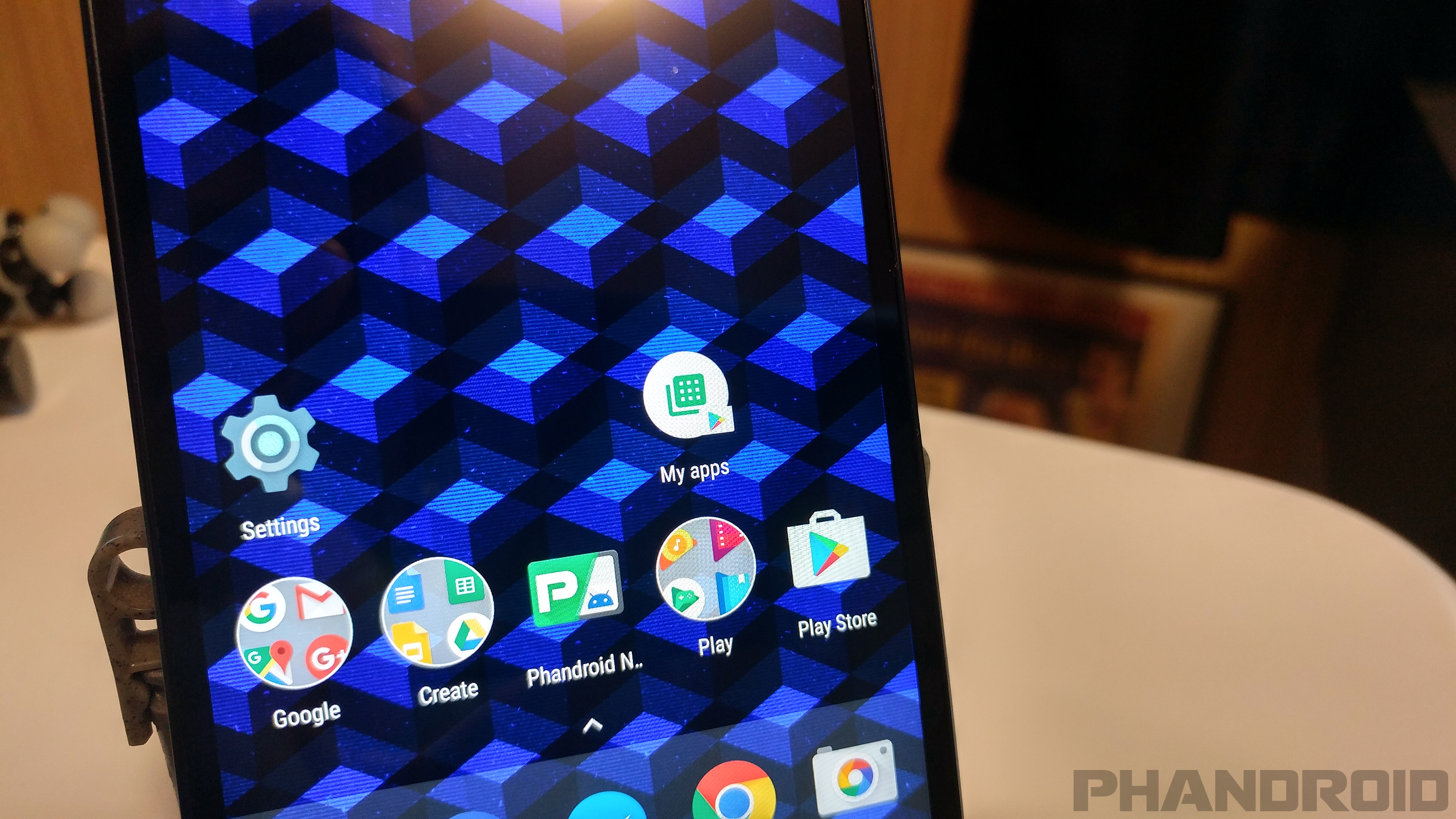
If you’re like me, you open the Play Store mostly for one reason: app updates. It’s important to keep your apps updated and to read about the changes. One of the newest Android features is called “App Shortcuts.” It allows you to long-press an app on your home screen and jump straight to a specific section. The Play Store has this for the “My Apps” section. You can put the “My Apps” shortcut directly on your home screen.
Note: This feature only works in Android 7.1+ or with certain 3rd-party launchers (such as Nova Launcher).
Put the Play Store on your home screen if it’s not already
Long-press the Play Store
Long-press the My apps shortcut
Drag it anywhere on the home screen and drop it
Done!
2. Jump to App Info from the Recent Apps

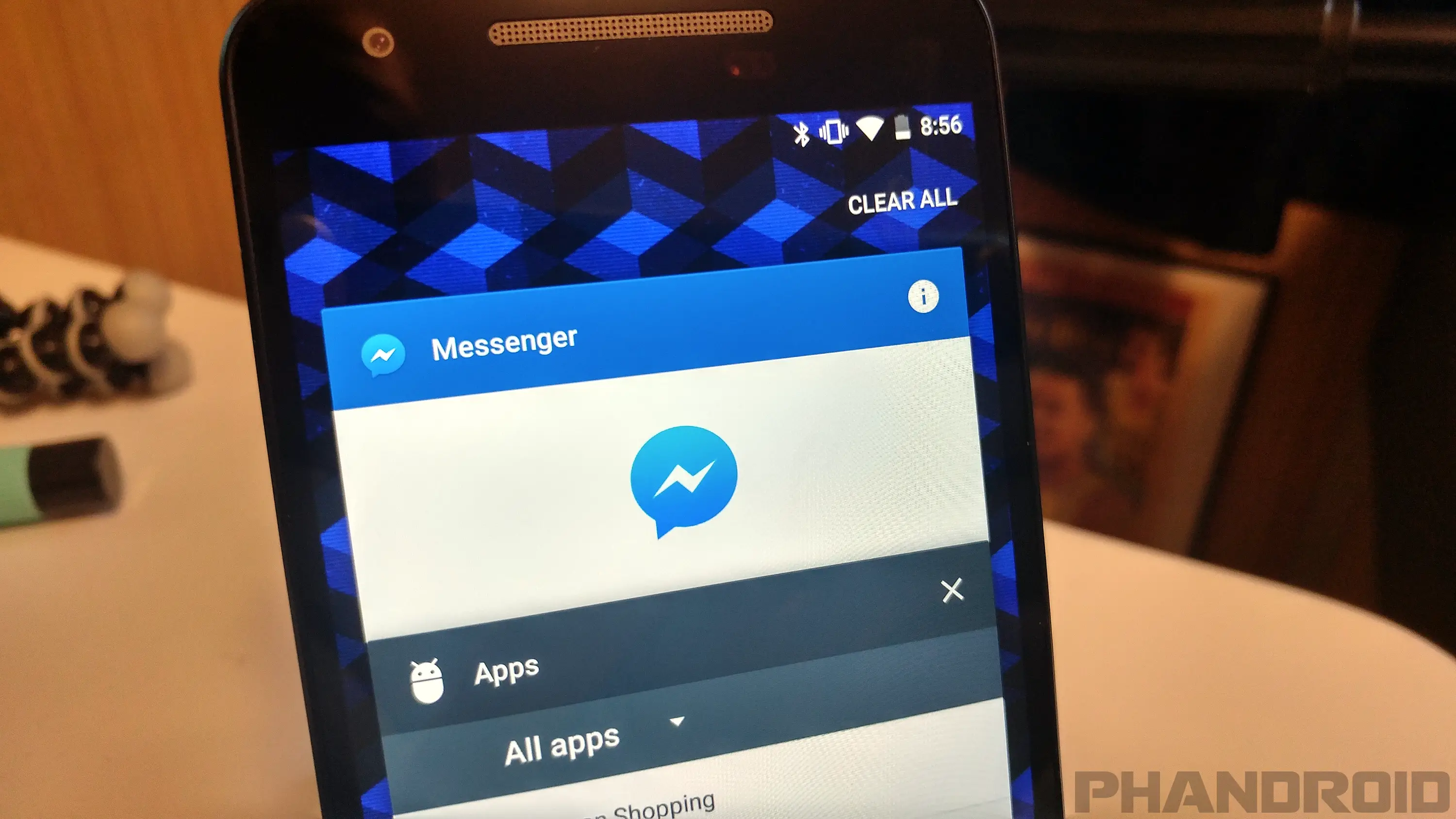
Every Android app has an “App Info” page in the Settings. This is where you can disable, force stop, clear cache, reset defaults, and perform a number of other functions. The reason for visiting this page usually has to do with an app misbehaving. Navigating to the App Info page through the Settings app can be cumbersome. Thankfully, there is a much quicker method.
Open Recent apps/Multitasking screen
Find the app you want
Long-press the app icon in the title bar
Depending on your phone, it will jump straight to the App Info page or you’ll have to tap the (i) button
Done!
3. Prevent nosy people from looking through your phone

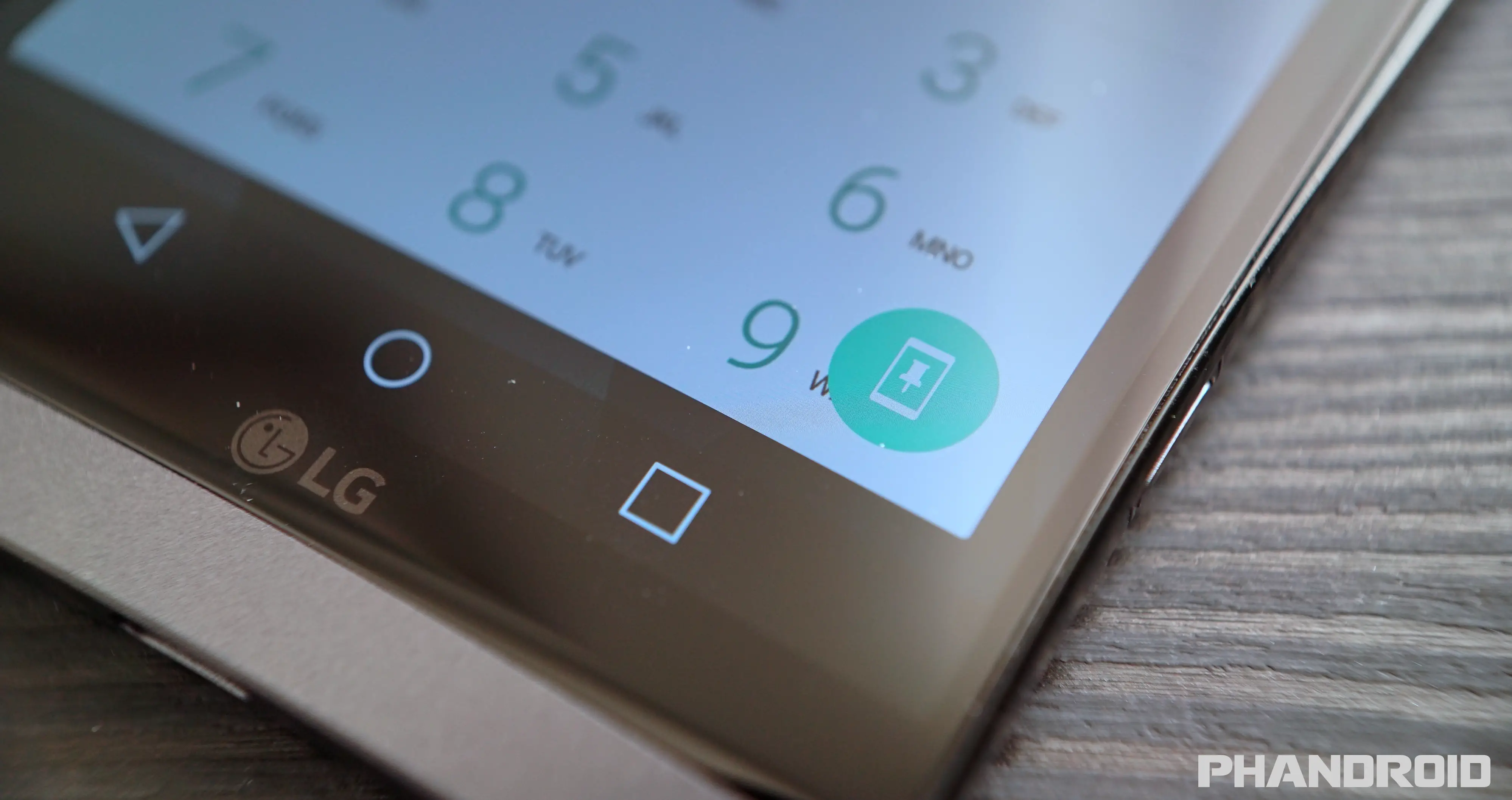
Your phone is full of personal information and sensitive content. It’s only natural to feel a little anxious when someone else has all of that information in their hands. “Screen Pinning” is a feature that gives you peace of mind when handing your phone to someone else. It allows you to “pin” an app so it’s impossible for someone to leave that app and look at other stuff on your phone. Only you can unpin the app.
Open the Settings app
Go to the Security section
Find Screen pinning or Screen pin
Turn it on and also make sure to enable the screen lock option
To use it:
Open the app you want to pin
Open the Recent apps screen and scroll up to reveal the pin icon
Tap the pin icon and hand your phone off
To unpin the app, it’s usually something like long-pressing the Back button or long-pressing Back and Recent apps. Your phone will tell you how to do it.
4. Create custom Quick Tiles

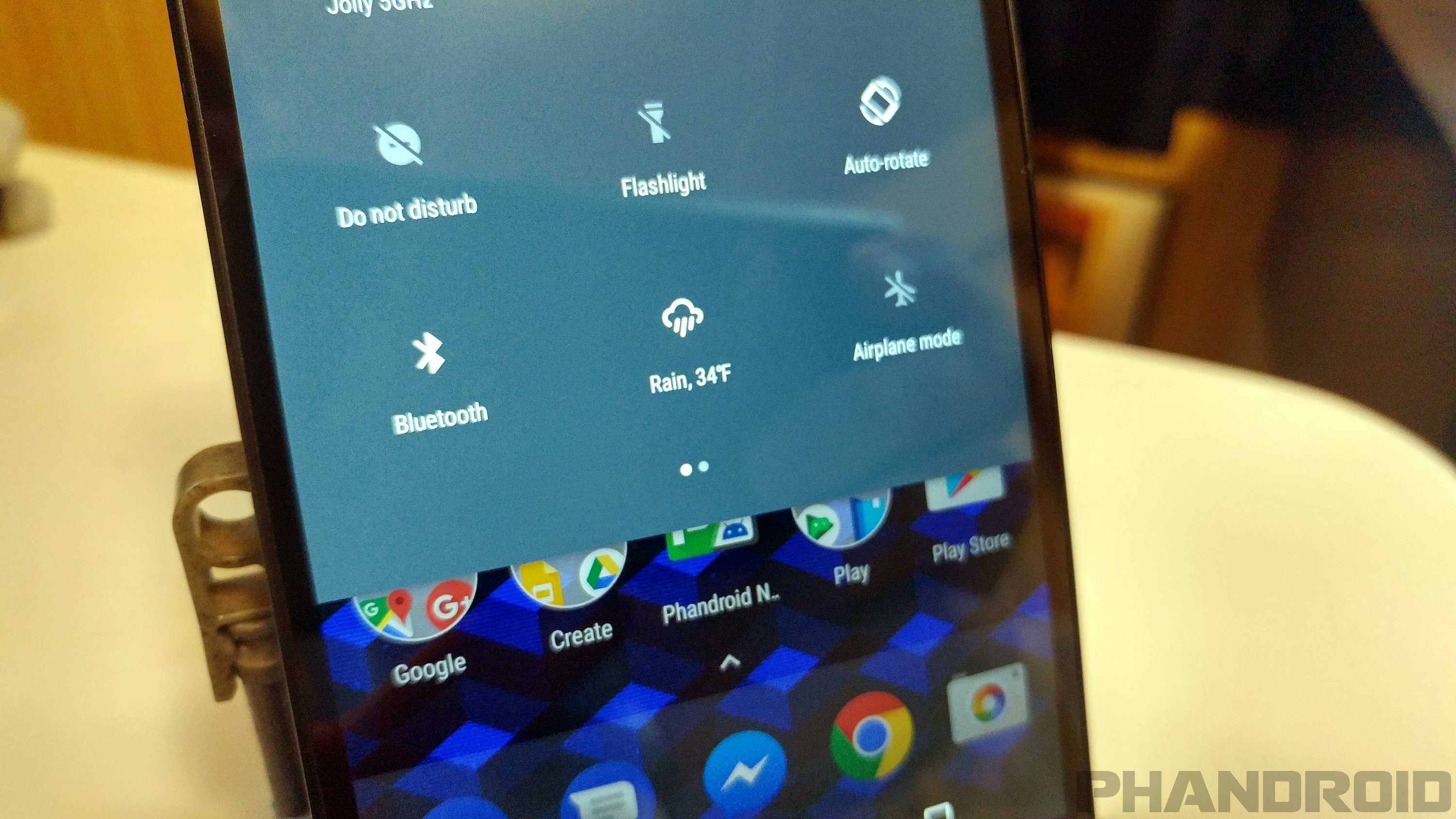
One of the best new Android features you may not be aware of is custom Quick Settings Tiles. The Quick Settings is the area in the notification shade that allows you to quickly toggle on WiFi, Bluetooth, and a number of other things. You can rearrange these tiles to your liking, but what’s even better is to download more tiles from the Play Store. Here are a few to try out:
Weather Tile – weather conditions and current temperature
Caffeinate – keep screen awake for 5 minutes
Quick Search Tile – do a web search
Tiles – create your own tiles
How to add a Quick Tile:
Pull down the Quick Settings
Tap the EDIT or pencil icon
Find the tile and drag it to the Quick Settings
That’s it!
5. Restrict apps from using data in the background

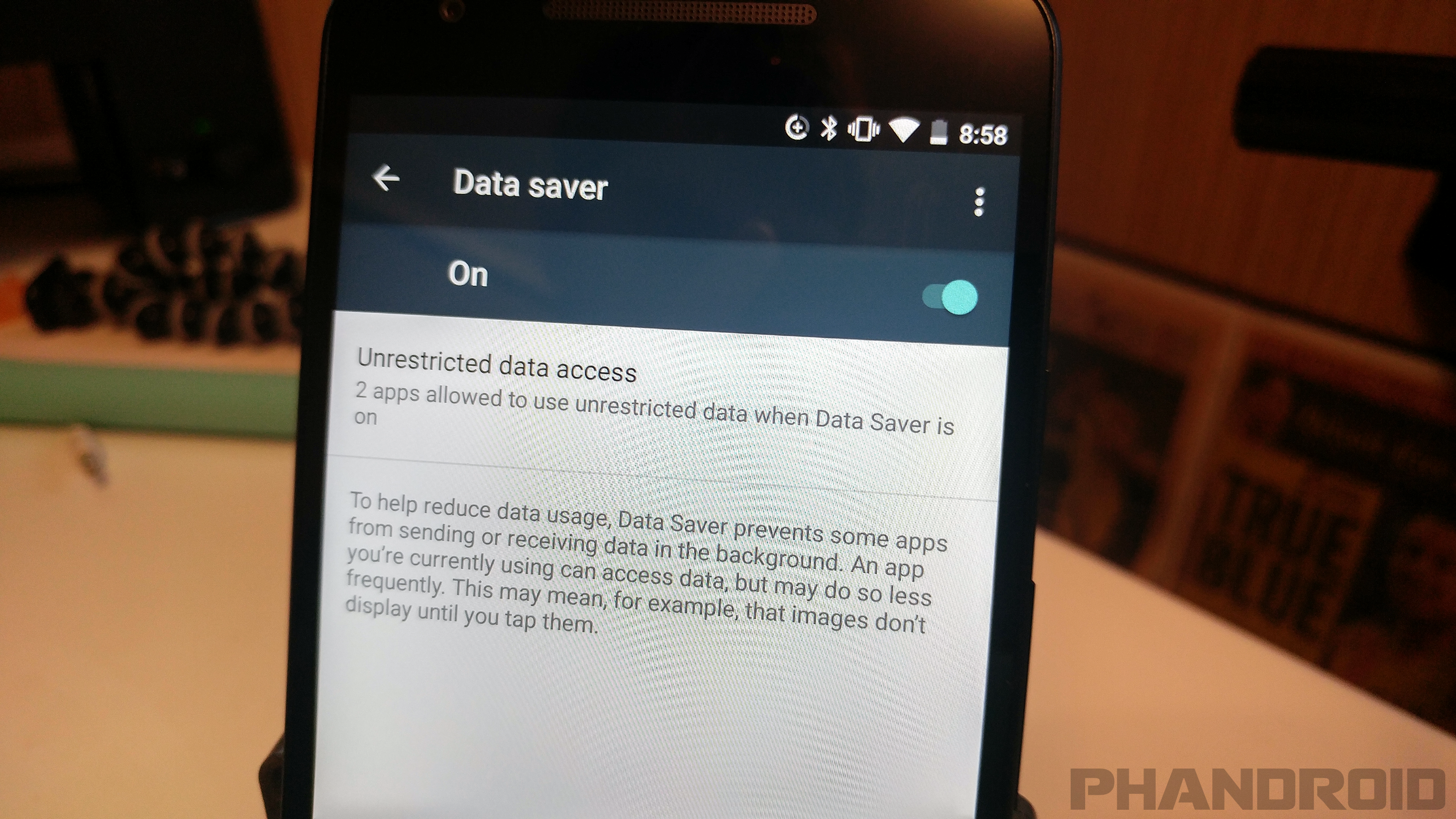
The unfortunate state of mobile data is that most of us have to make do with not enough of it. Making it to the end of the month without going over your limit can be a struggle, especially when apps are guzzling data behind your back. Android has had a feature for a while that can cut off data when you reach a certain point, but a new feature allows you to cut off data for specific apps. It’s a very powerful tool.
Open Settings
Go to Data usage > Data saver
Toggle the switch on
Tap Unrestricted data access
Select the apps you want to allow to use mobile data
Done!
6. Hide lock screen notifications from prying eyes

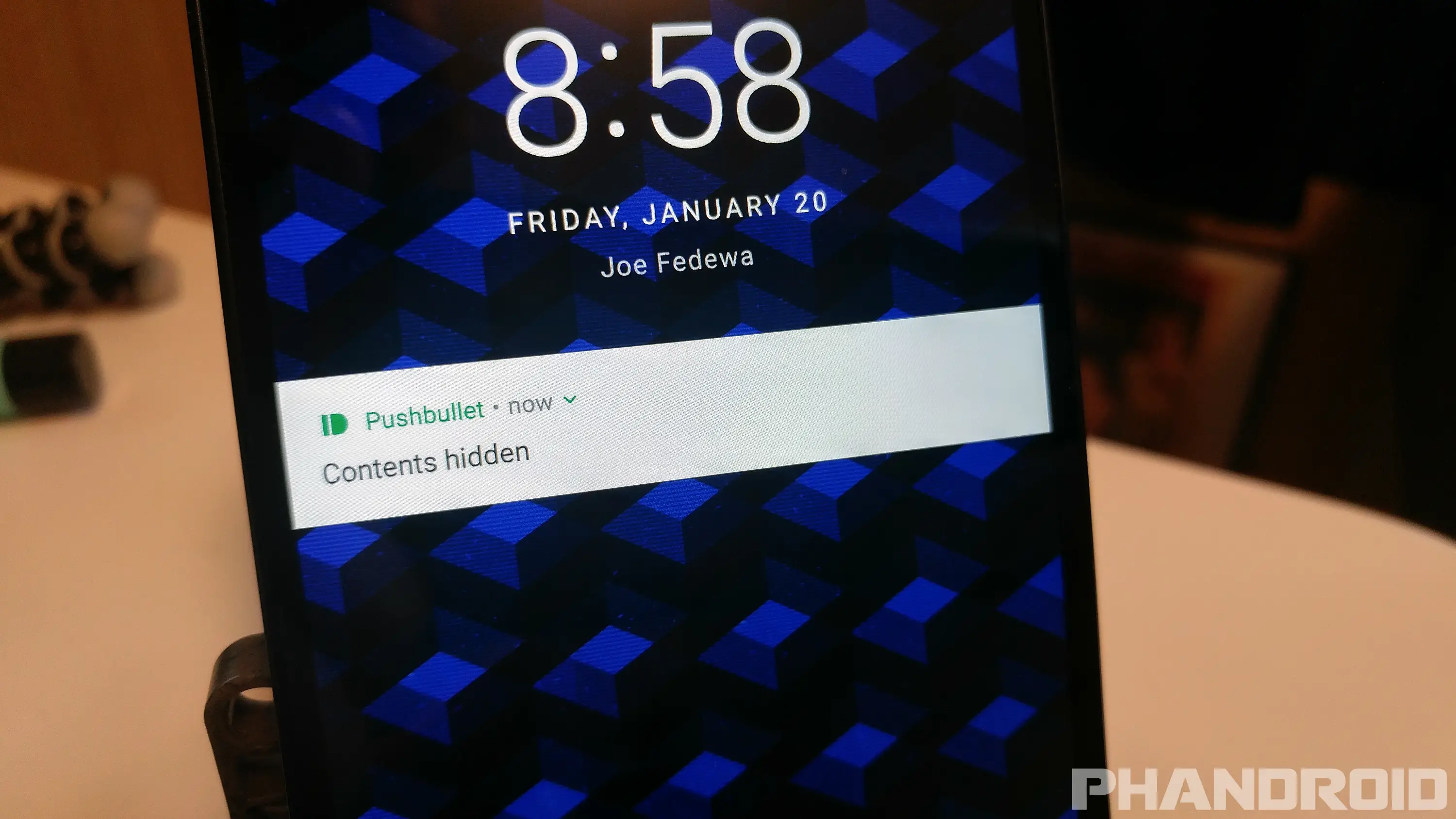
If you’re a smart smartphone user, you have some type of lock screen security. That should keep people from getting into your phone, but what about the stuff they can see on your lock screen? You could have an incriminating or personal information tucked in a text message for anyone to see. Thankfully, you can hide the content of your notifications on the lock screen. It’s very easy to do.
Open Settings
Go to Notifications or Sound & notification
Tap the gear icon (skip if not on Android Nougat)
Tap On the lock screen or Lock screen
Choose from one of the options
Don’t show notifications at all
Show all notification content
Hide sensitive notification content
That’s it!
7. Use gestures on the Fingerprint Scanner

Most phones these days have fingerprint scanners. Other than the obvious fingerprint scanning, some phones use the scanner as a power button or home button. That’s basically the extent of the usefulness. What if you could use the fingerprint scanner for more? What if it could do anything you want? A very cool app called Fingerprint Quick Action can do just that.
Download Fingerprint Quick Action
Open the app and check the box to Enable Fingerprint Quick Action
You’ll be asked to give Accessibility permissions. Tap OK and do it
Return to the app and select an action for Single tap, Fast swipe, and Double tap
You’re done!
8. Insert GIFs with the Gboard keyboard



The right GIF can say a lot more than even the most finely crafted text message. There are plenty of ways to find GIFs on Android, but nothing is easier than having GIFs built right into your keyboard. Google’s own Gboard keyboard has the functionality. You can find the perfect GIF without leaving the current app. This feature isn’t supported in all apps yet, but more and more are jumping aboard the GIF train. You should too.
Install Gboard
Download Gboard
Go to Settings > Language & input
Tap Current keyboard
Select English (US) Gboard
Insert GIFs with keyboard
Open a supporting app
Start composing a message
Press the emoji button
Press the GIF button
Browse categories or search for a specific GIF
Select the GIF to use!
Comments